2016

Almost every WordPress user I know has encountered the internal server error at least once. It’s quite annoying because, unlike many common WordPress errors, the internal server error does not tell you what you need to fix. This can be frustrating since the error can be a result of several reasons as you’ll see below.Some of the possible causes for the Internal Server error are the following:
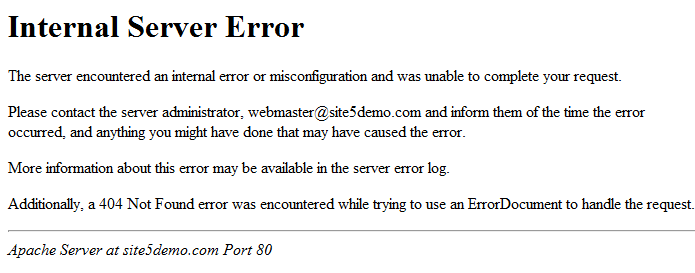
  • Corrupted plugin functions
  • Corrupted theme functions
  • Corrupted .htaccess
  • Exhausted PHP memory limit

Internal Server Error Solutions:

This error can easily send a beginner into panic mode but worry not, here are some solutions.
a. Edit .htaccess file Since the internal server error is mainly a result of a corrupted .htaccess file, login into your WordPress root directory via File Manager (or FTP) and rename your .htaccess file to .htaccess.old. Refresh your browser to see if you solved the error. If the error disappeared, go to Settings -> Permalinks and click on the Save Changes button to reset your .htacess and flush write rules. If this does not work, perhaps you need to check your plugins.
b. Deactivate all plugins A plugin you just installed could be the problem, but that’s great because you know what to uninstall or delete. Other times, this WordPress error may crop up as a result of an old plugin (or several plugins that are incompatible). You won’t know for sure if the problem is your plugins unless you deactivate the plugins.
c. Change Themes If the problem was not the plugins, perhaps your theme is. Switch to the Twenty Twelve theme and reload your website. If you’re still seeing the error, perhaps you need to upgrade some of your WordPress folders.
d. Repair the wp-admin and wp- includes folders By this point, you’ve probably solved this WordPress error. But if this is not the case, try replacing your wp-admin and wp-includes folders with newer ones from a fresh WordPress install.
e. Increase your PHP memory Limit If everything else fails, you have to get down and dirty and mess with a few things on your server. The internal server error can be frustrating, so I don’t expect anything to stop you. Here is a great guide on increasing PHP memory by the good guys at WordPress.If you like taking shortcuts, fire up your code editor and create a text file named php.ini. Inside this file, add this code: memory=64MB Save and upload the file to the /wp- admin/ folder. If increasing your PHP memory solves the problem, talk to your web host to put a finger on what is exhausting your memory. It could be anything from broken theme functions to poorly designed plugins among other things. Your web host will furnish you with information from your server logs.

Conclusion

I am Gonna Stop Here For Today Hope This Was Helpful? Kindly Share With Your Friends And Leave A Comment Below!!!!

First thing you need to do is install and activate the Custom Login URL plugin. Upon activation, you need to visit Settings » Permalinks to configure your WordPress login and admin URLs. Make sure that you are using SEO friendly URL structure on your site. Below the default WordPress permalinks settings, you will notice two new sections: ‘Authentication Permalinks’ and ‘Authentication Redirects’.

Under authentication permalinks, you need to enter the last part of each link. This last part is called the slug, for example my-login-page, lostpassword, signup, etc. Enter the slug for your login, registration, lost password, and log out URLs. Your slug can be anything that you like. Under authentication redirects section, you need to tell the plugin where to send users upon successful login or logout. By default, users are redirected to the admin area or /wp- admin/ directory upon login. When the user logs out, they’re redirected to the login page.

Robots Txt File plugin allows you to create or edit the content of your robots.txt file. It’s really simple to use. Just install the plugin by using dashboard or upload “robots-txt- file” folder to your plugins directory. Now activate it from WordPress admin panel and go to Dashboard => Settings => Reading. You’ll find a box with title Robots.txt File. You can write and edit the default robots.txt content in the box. And click the “Save Changes” button to save your edited file. All done!

Download link

Download Here

Conclusion

I hope you’re using the benefit of robots.txt file plugin and liked it. However, If you have any issue don’t be late to ask me by comment box. And finally you think that it’s useful for others also then don’t forget to hit on share buttons.

From the creators of the best selling FlipBook ever, we present Responsive FlipBook WordPress Plugin. It is fully HTML & jQuery driven no Flash Player needed. Works on desktop and mobile devices! You get the same experience on every platform because responsive design makes it look good on all resolutions. Easy to customize with an advanced admin panel. With version 2.0 it has been complete rewriten from the ground up. Big Thanks to 24beyond for letting us use their brochure & magazine mockups!

Demo and Download link

See the demo
Click here to Download

Usually this happens when a plugin or an active theme is not allowing WordPress to properly execute the code in the footer area of your website. This code is triggered with the function . When a theme is missing this code, or a plugin does something that messes it up, then you will end up with a missing WordPress admin bar issue.

Fixing the Missing Admin Bar

The most common culprit causing this problem is a missing line in your theme. This function is usually found in a theme’s footer.php file just before the tag. Before you do anything to fix it, make sure you create complete WordPress backup or at least backup your theme files. Connect to your website using an FTP program like Filezilla, or use the File Manager in your web hosting account’s cPanel dashboard. Next, go to your theme folder which is located inside /wp- content/theme/ folder and download a copy of your theme’s folder to your Desktop as backup. You would need to locate the footer.php file inside your theme folder and scroll down to the end of the file to see if you have line before the tag. If you do not have this line, then you need to add it and then upload the changed file back to your server. If you are using a child theme and your child theme does not have a footer.php file, then you need to check the parent theme’s footer.php file to locate the wp_footer function. If adding the wp_footer() function to your theme does not solve the missing admin bar issue for you, then don’t worry there are other things you can do to troubleshoot this error.

Troubleshooting

Temporarily switch back to a default theme. Sometimes you may see wp_footer function in your theme files, but the admin bar still might not work. In this case, you need to switch to a default theme to make sure that your current theme is not causing this issue.
A poorly coded plugin can cause this error as well, so to check if a plugin has caused this issue, you need to deactivate all plugins on your WordPress site. If this resolves your problem, then this means that there was a plugin that caused this issue. Now you need to figure out which plugin caused this issue. You can do this by reactivating your plugins one by one until you find the plugin that caused the issue. Lastly, you can turn the debugging on by opening wp-config.php file and changing define (‘WP_DEBUG’, false); to define (‘WP_DEBUG’, true); . WordPress will now show you warnings and notices that were previously hidden. These warnings and notices can hint towards the file causing this issue.

Conclusion

That’s all, we hope this article helped you fix missing admin bar issue in WordPress. You may also want to check out our guide What everybody ought to know about the WordPress admin bar.

Download Free Premium Blogger Templates 2016 Pack including 50+ Professional Blogspot Themes 2016 by ThemeForest and other developers. In this post we have together all premium responsive blogger template(s) having great user friendly functionality in it. You all will surely like this theme package only for Blogspot users. This package includes the most awesome web designs in the world developed by great developers and designers. As you know blogger.com is an amazing and most useful web publishing platform in the world having millions of webmaster / bloggers. It is perfect solution for newbies who do not know how to start a blog and how to get money from it. So you can start your journey through blogspot…

Download link

Download now

Download Free mySTAT WordPress Plugin v.3.1 – CodeCanyon | mySTAT v3.1 – Site Visitor Statistics for WordPress has great unique features for analytics, statistics, SEO optimization for better search engine optimization results and that is why anyone who has their own online website should have it. In fact, mySTAT is a very great comprehensive set of tools that is necessary for collecting and classifying data from all valuable areas. The previous version of mySTAT has over 500,000 active downloads and stringently positive reviews! This premium product is a multi-platform one, so it can easily be installed onto both existing popular types of CMS (Content Management System) and onto any other third-party developed sites.

Demo and Download link

See the demo
Download now

Do you want to display all your WordPress posts on one page? Recently one of our readers wanted to create an archives page and show all WordPress posts on a single page. In this article, we will show you how to display all your WordPress posts on one page without pagination.
Show all WordPress posts on one page

Why and When to Display All Posts on One Page?

WordPress comes with built in archive pages for each category, tags, author, and date.
Many site owners however prefer to create custom archives page for their site. The archives page usually highlight their popular posts, display a date based compact archive, list categories, or display tag clouds, and more. Take a look at WPBeginner’s archives page as an example.
Some blogs prefer to simply display a list of all their WordPress post titles on one page.

Showing All WordPress Posts on One Page

There are many different ways to display all your WordPress posts on a single page. You can display posts on a page with a shortcode, you can display posts on a page using a plugin, and lastly you can display all posts on a page using a custom template and loop.
We will cover all three methods starting with the most beginner friendly one.

Method 1: Using Display Posts Shortcode Plugin

First thing you need to do is install and activate the Display Posts Shortcode plugin. For more details, see our step by step guide on how to install a WordPress plugin.
This plugin works out of the box, and there are not settings for you to configure.
Go ahead and create a new page and call it Archives or any other title. After that, you need to paste the following shortcode in your page.
1[display-posts posts_per_page="1000" order="DESC"]
This shortcode will simply display a list of all your post titles in a chronological order. It is set to display maximum 1000 posts per page.
If you have more than a thousand posts, then you can change that. You can also change the post order to ASC which will display posts in a reverse chronological order (older posts first).
List all posts in WordPress
While you could use the display posts shortcode to show excerpts, thumbnails, and other related information, we don’t recommend doing that. When you are listing all your posts on a single page, this page will be long, and you want to make sure it’s simple and fast. Just displaying post titles is sufficient for archives page of this style.
If you want to display posts on page based on category or other parameters, you can do so by following the detailed usage instructions on their documentation page.

Method 2: Using Simple Yearly Archive Plugin

Showing all your WordPress posts on a single page can make it too long to scroll. You can fix that by showing a list of each year. Users can then click on a year to expand it and see the posts published that year.
First thing you need to do is install and activate the Simple Yearly Archive plugin.
Upon activation, you need to go to Settings » Simple Yearly Archive page to configure plugin settings.
Simple yearly archive settings
The plugin allows you to display list of posts in a variety of ways. You can show them all under links to yearly archives, or you can show them under collapsible years.
If you want to display them under collapsible years, then you need to add <div> and </div> next to the option ‘Before / After (Year headline)’.
Rest of the plugin options are quite self-explanatory. You can set them up according to your needs.
Don’t forget to click on the save changes button to store your settings.
Now to display all your posts on a page, you just need to add [SimpleYearlyArchive] shortcode to the page of your choice.
Collapsible yearly archives showing all posts in WordPress
The plugin provides a range of parameters that can be used with the shortcode. You can look at the parameters on plugin’s documentation page.

Method 3: Display All WordPress Posts in One Page with Template Code

While using a plugin to display all posts in one page is the easiest way, some of you may want to learn how to do it with page templates code.
First you will need to create a custom page template and copy the styling from your page.php file.
After that, you will use a loop below to display all posts in one page.


<?php

// the query

$wpb_all_query = new WP_Query(array('post_type'=>'post', 'post_status'=>'publish', 'posts_per_page'=>-1)); ?>


<?php if ( $wpb_all_query->have_posts() ) : ?>


<ul>


    <!-- the loop -->

    <?php while ( $wpb_all_query->have_posts() ) : $wpb_all_query->the_post(); ?>

        <li><a href="<?php the_permalink(); ?>"><?php the_title(); ?></a></li>

    <?php endwhile; ?>

    <!-- end of the loop -->


</ul>


    <?php wp_reset_postdata(); ?>


<?php else : ?>

    <p><?php _e( 'Sorry, no posts matched your criteria.' ); ?></p>

<?php endif; ?>


If the above code instructions does not make sense, the we recommend that you use method 1.
We hope this article helped you display all your WordPress posts on one page.
If you liked this article, then You can also find us on Facebook.


Advanced iFrame Pro v7.0.2 WordPress Plugin Include content the way YOU like in an iframe that can hide and modify elements and forward parameters. You can also embed content directly or show a part of an iframe. You can download previous version of this WordPress Plugin Advanced iFrame Pro v7.0 – Codecanyon WordPress Plugin.
DemoDownload
Download Links
https://www.mirrorcreator.com/files/GYS6TRWJ/advanced-iframe-pro_v702.rar_links
http://www.solidfiles.com/d/f1cb1d285f/
http://www.datafilehost.com/d/ae892f52
http://turbobit.net/zg80a1d0xfq2.html
http://www.speedyshare.com/file/d6AJw/advanced-iframe-pro_v702.rar


Download – WooPress v2.8 – Responsive Ecommerce Premium WordPress Theme

WooPress v2.8 – is a professional, sleek and powerful WordPress WooCommerce template that provides an elegant solution for those who are going to sell products online. If you want to create an online store which has both, great design and lots of features – choose WooPress theme. you Can Download Previous Version OF This WordPress Theme WooPress v2.7.2 – Responsive Ecommerce WordPress Theme.
DemoDownload
Download Links
https://www.mirrorcreator.com/files/W4RVPLKT/WooPress_v2.8.rar_links
http://www.solidfiles.com/d/d9060e2b2a/
http://hugefiles.net/ucmfv6p495nu
http://rghost.net/6kYRj2Lfn
http://www.datafilehost.com/d/d68ebace
http://turbobit.net/2ol61jyh94d0.html
http://www.speedyshare.com/file/Bcu75/WooPress_v2.8.rar


Download – Megatron v1.4 – Responsive MultiPurpose Premium WordPress Theme

Megatron v1.4 is an incredibly thorough Multipurpose WordPress theme, packed with features and options and pre built templates you can literally build any kind of website imaginable. You Can Download Previous Version Of This WordPress Theme Megatron v1.3 – Premium Responsive MultiPurpose WordPress Theme.
DemoDownload
Download links
https://www.mirrorcreator.com/files/LIYLNFZG/Megatron_v1.4.rar_links
http://www.solidfiles.com/d/1b291e5712/
http://rghost.net/8SL7blwVB
http://www.datafilehost.com/d/ea34c9b9
http://turbobit.net/6jslphc82yd2.html
http://www.speedyshare.com/file/5TFnc/Megatron_v1.4.rar

First thing you need to do is install and activate the PDF Viewer plugin. Upon activation, you need to visit Settings » PDF Viewer to configure the plugin settings.

PDF Viewer plugin allows you to control the height and width of the PDF viewer. You can change this if you feel that PDF viewer container is too wide or narrow on your site. You can also disable support for older versions of Internet Explorer. By default, the plugin will not show the PDF viewer to users with Internet Explorer 9 or below. Instead, those users will see a download link. You can modify the message users with old browsers will see. Don't forget to click on the save changes button to store your settings.

Embedding PDF Files with PDF Viewer in WordPress

Adding PDF files in your blog post is quite simple. First you need to upload a PDF file using the media uploader. You can do this by creating a new post or edit an existing one, and then click on the 'Add Media' button above the post editor.

After uploading your file, you can copy its URL directly from the media uploader.
Use shortcode like this [pdfviewer width="600px" height="849px" beta="true/ false"]http://full-url/document.pdf [/pdfviewer]
PDF.js is an HTML5 technology experiment that explores building a faithful and efficient Portable Document Format (PDF) renderer without native code assistance. The goal is to create a general-purpose, web standards-based platform for parsing and rendering PDFs. PDF.js development is community-driven and supported by Mozilla Labs.

Twitter Clone Script Babar786

Twitter Clone Script Babar786


Twitter Clone PHP Nulled Script Description:

Start Your Own Twitter Like Website. Create your own popular micro blogging / social networking website.
Features:
  • SEO Profiles – YourDomain.com/Username
  • #Tagging in posts just like Twitter!
  • Text and Picture Updates Supported
  • Link to profiles using @Username when posting updates
  • 100% Visible Source Code (The script is not encrytped)
  • Template System (Easy Customization)
  • Custom Backgrounds
  • Secure Code
  • Free Support For Life!
  • 3 Months Free Updates

Live Demo:

Download:

http://uppit.com/a2uu9ksvivne/www.babar786.com_twitter_clone_script.rar

NewsMaker - CMS and Social Network
NewsMaker is social network and CMS for gathering user-generated content. Now you can create cool website and cultivate massive amount of great news, images, links and videos. NewsMaker comes with simple auto-installer. Easily include advertisments using Admin panel, and start making money with your content. NewsMaker comes with 3 ad slots: in middle of post, right side of post and bottom side of post. 
Demo: codecanyon.net/item/newsmaker-cms-and-social-network/9788299

www.hotfiles.ro/download/newsmaker.rar/1408144
www.mirrorcreator.com/files/1WR1VYG7/newsmaker.rar_links
www.nowdownload.to/dl/25ead10dcd6ab
www49.zippyshare.com/v/6hsTrgme/file.html
ul.to/6f7cg4k2
www.solidfiles.com/d/4ccef38bf4/
userscloud.com/46uhzj8gjlmn
copy.com/MbKUwoYjC7AjC68z
www.mediafire.com/download/vyl5dks2ca9dgly/newsmaker.rar


MAG v1.5 = Grid Magazine / News WordPress Theme is a modern and clean Magazine / Blog / Personal WordPress Theme. Some of the great features of this theme are responsive layout with Fly-Out Navigation for Mobile and Tablets This is a Highly Cool Customisable Responsive Great Menu Plugin, with 45 customisable options.
DemoDownload

Top Features of this Theme

  • Left / Center Logo
  • 100% Responsive
  • Boxed and Full width option
  • 10 Custom Widgets
  • 3 Columns with also Grid Style
  • Unlimited Sidebars for Pages / Articles, etc
  • Fly-out Mobile Navigation
  • Live Search with Thumb
  • Easy Setup .XML File Included
  • Background Image from Theme Options
  • Hide Featured Image Option
  • Tag and Cat Map Option
  • Google Snippets
  • Unlimited Colors
  • Child Theme Included
  • Description for Categories for SEO
  • Ready to operate out of the box
  • Fully Customizable
  • Font Awesome Icons
  • 600+ Google Fonts
  • Sticky Header
  • Translation Ready .po & .mo
  • Custom Logo
  • Custom Favicon
  • Drag and Drop Gallery Images
  • 0 PHP notices & warnings
  • Custom CSS via Theme Options
  • Disqus comments System – ready to operate
  • Contact Form 7 plugin


Apriezt a col blogger Template with responsive layout it has two style 1 Boxed and 2nd Full width. Its High User Friendly with also seo friendly Blogger Template. Its design simple and clean for a perfect News, Magazine or Other newsly types of websites. With an attractive color combination and impressed professional looks and it has many features. You Can see in Demo
DemoDownload
Download Links
https://www.mirrorcreator.com/files/PYKLWVHK/Apriezt-1-2.rar_links
http://ryushare.com/ao9qwt5noklp/Apriezt-1-2.rar
http://www.sharebeast.com/iare66zdfve6
http://turbobit.net/tghxv23hrvb7.html
http://ge.tt/1z7cxxE2/v/0
http://rghost.net/79k8tGLjv
http://uptobox.com/3jn3ltioy17s
http://www.sendmyway.com/tam52uqth3ft/Apriezt-1-2.rar.html
http://hugefiles.net/o4f229zyt8jz
http://www.solidfiles.com/d/5ff298a1d2/Apriezt-1-2.rar
http://www55.zippyshare.com/v/Ad7KfIle/file.html
https://www.mirrorcreator.com/showlink.php?uid=PYKLWVHK&hostid=78&sess_id=7a91b45954e9aea5927ccd091fa71157

Contact Form

Name

Email *

Message *

Powered by Blogger.